By HLC Solutions

Deploy Odoo Community in a few clicks.

Choose a version, pick a server and press Deploy. We create the server, install Odoo, connect your domain and add free SSL, all inside your own DigitalOcean account. No terminal and no guesswork.

Start a deployment in seconds. Odoo is usually live in 10 to 20 minutes. One time payment for a lifetime license, and your server bill goes straight from DigitalOcean to you.

erp.yourcompany.com Odoo 19
  1. Reserved IP 159.89.12.40
  2. Server created in Frankfurt, 2 vCPU and 4 GB
  3. PostgreSQL, Odoo and wkhtmltopdf installed
  4. Database ready, admin password set
  5. Domain points to 159.89.12.40
  6. SSL certificate issued
Live at https://erp.yourcompany.com
HLC Solutions logo

Made by the team at HLC Solutions. We set up and customise Odoo every day for restaurants, retailers, manufacturers and government clients, and this is the exact server setup we use for them.

How it works

  1. Tell us you're interested

    Leave your name and WhatsApp number at the bottom of this page. We'll message you with the price and answer any questions.

  2. Pay the invoice

    Your invoice arrives on WhatsApp as a PDF. Pay by bank transfer and send the screenshot in the same chat.

  3. Receive your license key

    Log in with the key and connect your DigitalOcean account. The setup guide below shows you how.

  4. Deploy Odoo

    Pick the version, server size and region, add a domain if you have one, and press Deploy. That's it.

A proper production setup, every time

Every Odoo instance gets its own clean server, configured the way an experienced Odoo developer would do it by hand.

Odoo 16, 17, 18 and 19
Community, or Enterprise with your own Odoo subscription, from the official source code on the right Ubuntu release for each version.
Free SSL and Nginx
A Let's Encrypt certificate, automatic HTTPS and working live chat and Discuss out of the box.
Switch servers in seconds
Each instance has a reserved IP. Move it to another server and your users never notice.
Point your domain anywhere
Send the domain to any IP address from the dashboard, and bring it back with one click.
Domain is optional
Start on the server's IP and connect a domain later. We add it to DigitalOcean or Cloudflare for you.
Tuned for the server you choose
Workers, swap space, firewall and auto restart are set to match the size of your server.

Who uses it

Odoo developers and freelancers

Give every client their own Odoo instance in minutes instead of spending an evening on server setup.

Businesses running their own Odoo

Own your server and your data. No middleman hosting fee, just your DigitalOcean bill.

Agencies with many clients

Run dozens of separate Odoo instances from one dashboard and see the status of each at a glance.

Setup guide

Everything runs on your own accounts. You'll copy one or two tokens into the deployer's Settings page, and this is exactly how to create them.

DigitalOcean token

Required
  1. Sign up at cloud.digitalocean.com and add a card or PayPal in Billing. DigitalOcean bills you directly for your servers.
  2. We recommend adding your SSH key in Settings, under the Security tab. It gets added to every server so you can log in to it.
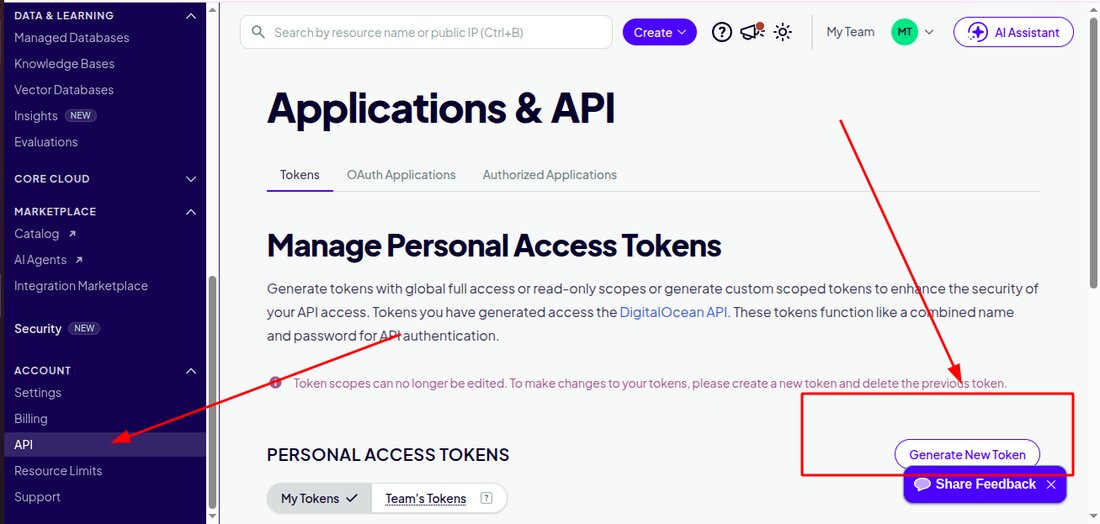
  3. In the left menu, scroll down to Account and click API. Stay on the Tokens tab and click Generate New Token.
  4. Name it HLC Odoo Deployer, choose No expiry and select Full Access.
  5. Copy the token straight away, because DigitalOcean shows it only once. It starts with dop_v1_. Paste it on the deployer's Settings page under DigitalOcean.
DigitalOcean control panel showing API in the left menu and the Generate New Token button on the Tokens tab
Open API from the left menu, then click Generate New Token.

Cloudflare token

Optional

Only needed if you want your domain's DNS on Cloudflare. The free plan works.

  1. Open My Profile, go to API Tokens, click Create Token and choose Create Custom Token.
  2. Name it HLC Odoo Deployer.
  3. Under Permissions, add these three rows using Add more:
    TypePermissionAccess
    ZoneZoneEdit
    ZoneDNSEdit
    AccountAccount SettingsRead
  4. Set Account Resources to Include, All accounts. Set Zone Resources to Include, All zones.
  5. Leave Client IP Address Filtering and TTL empty.
  6. Click Continue to summary, then Create Token. Copy it right away and paste it on the deployer's Settings page under Cloudflare.

About your domain

You don't need a domain to start. Odoo also runs on the server's IP address, and you can connect a domain later. If your domain isn't on DigitalOcean or Cloudflare yet, the deployer adds it for you and shows the nameservers to set where you bought the domain, such as GoDaddy, Namecheap or PKNIC. That's the only step you do yourself. SSL is added automatically as soon as the domain points to your server.

Questions people ask

How do I deploy Odoo Community on DigitalOcean?

Create a DigitalOcean account, get your license key from us and paste your DigitalOcean token in Settings. Then pick the Odoo version, server size and region, add a domain if you have one and click Deploy. The deployer creates the server, installs Odoo with PostgreSQL and Nginx, sets up your DNS and adds a free SSL certificate.

How long does a deployment take?

Starting a deployment takes a few seconds. The server then installs everything on its own and Odoo is usually ready in 10 to 20 minutes. You can follow every step live on your dashboard.

Which Odoo versions can I deploy?

Odoo 16, 17, 18 and 19, Community or Enterprise, installed from the official Odoo source code on the Ubuntu release each version is built for.

Do I need a domain name?

No. Without a domain, Odoo opens on the server's IP address. You can connect a domain whenever you are ready and SSL is added automatically.

Who pays for the server?

You do, directly to DigitalOcean at their normal monthly rate. Our license is a one time payment, so we never sit between you and your server bill.

How many Odoo instances can I run?

As many as you need. Every Odoo instance gets its own server, IP address and database, so one client's system never slows down or affects another.

Can I move Odoo to another server later?

Yes. Each instance has a reserved IP that can be moved to another server in seconds, and you can point your domain to any IP address from the dashboard.

Can I deploy Odoo Enterprise?

Yes, if you have your own Odoo Enterprise subscription. With GitHub access to the Odoo Enterprise code the deployer installs Enterprise straight away. Otherwise it installs Community and you add the Enterprise source from odoo.com with one command. You then enter your subscription code in Odoo. We do not sell Odoo Enterprise licenses; those come from Odoo.

Can HLC Solutions customise Odoo for my business?

Yes. Alongside this tool our team builds custom Odoo modules, integrations and complete Odoo implementations for businesses in Pakistan, the Middle East and Europe.

Need more than a server?

HLC Solutions offers full Odoo services: implementation, custom modules, integrations with payment gateways and tax systems, data migration and training. If you're looking for an experienced Odoo developer for your project, we'd be glad to help.

Get access

Leave your details and we'll reach you on WhatsApp, usually the same day.

You'll need a DigitalOcean account with a card or PayPal added. A domain is optional, since Odoo also runs on the server's IP address.

Please include your country code.